

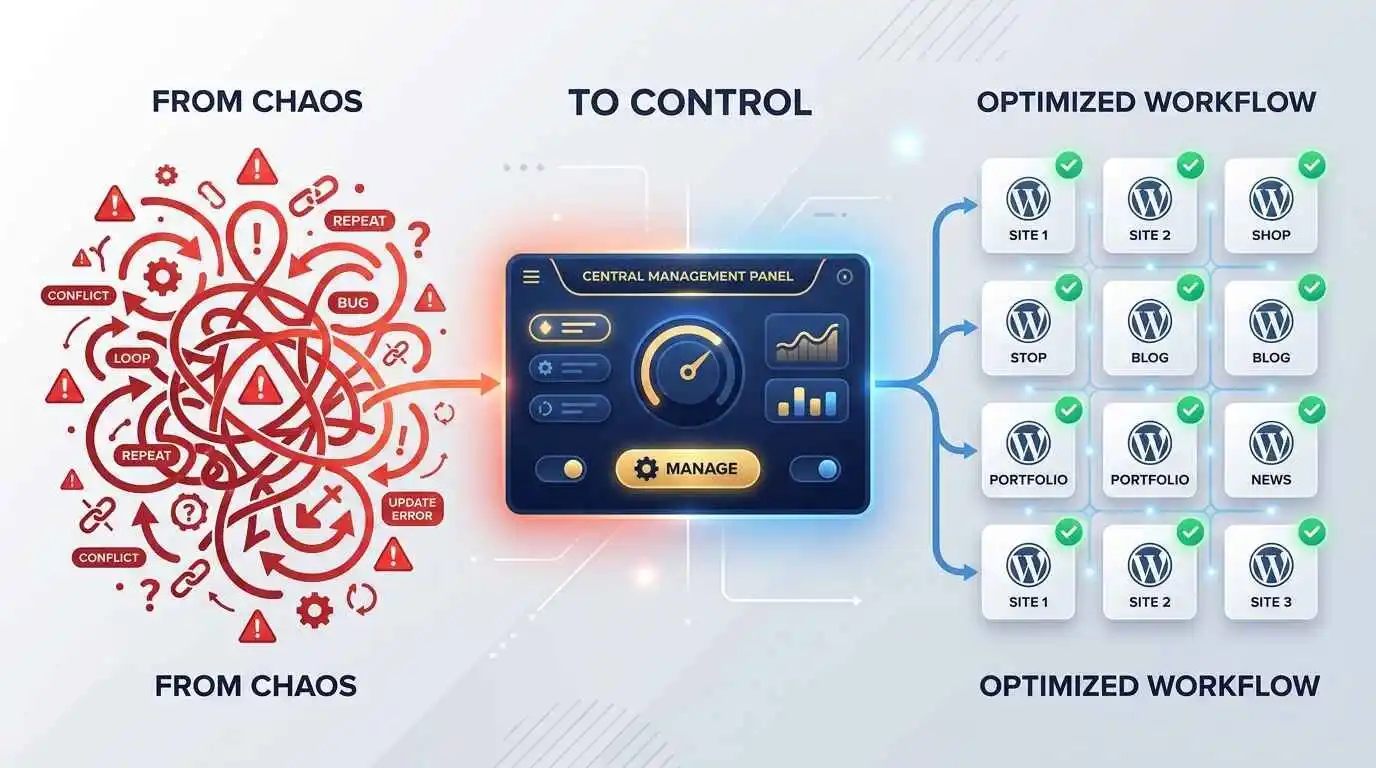
The real value of the Hub’s Plugins page only becomes obvious at scale. Managing five sites manually is tedious but tolerable; managing fifty sites manually is, for most people, simply not sustainable without either burning out or letting maintenance slip. By centralizing plugin discovery, deployment, auditing, and configuration into one consistent interface, the Hub effectively turns a fleet of WordPress sites into something that can be managed the way a single site would be managed, but with the leverage of bulk actions behind every step.
For agencies specifically, this translates directly into margin. Time saved on routine plugin maintenance is time that can be billed for actual client work, or simply time given back at the end of a long week. For freelancers managing a handful of client retainers alongside their own projects, the same logic applies on a smaller scale, but the relief is just as real: fewer logins, fewer missed updates, and far less mental overhead spent tracking which site needs what.
The Takeaway
WPMU DEV’s Hub Plugins page is, at its core, an answer to a problem every WordPress professional eventually runs into: the moment a single site becomes a portfolio of sites, and manual plugin management stops scaling. By unifying plugin discovery, bulk deployment, portfolio-wide auditing, and configuration consistency into one screen, it replaces what used to be dozens of separate, repetitive tasks with a handful of deliberate, trackable actions.
Whether the goal is rolling out a new security plugin across an entire client base, auditing which sites have fallen behind on a critical update, or simply keeping a growing portfolio of personal projects tidy without losing entire afternoons to it, the Plugins section of The Hub is built around the same underlying promise: manage everything from one place, and let the Hub handle the repetition.
Frequently Asked Questions
| # | Question | Answer |
| 1 | What is The Hub’s Plugins page used for? | It is a centralized screen for adding, installing, activating, configuring, and removing plugins across every WordPress site connected to a WPMU DEV Hub account. |
| 2 | Do I need a site connected to the Hub before using the Plugins page? | Yes, at least one site must be connected to the Hub, either through WPMU DEV hosting or the WPMU DEV Dashboard plugin on a third-party host, before plugin management features become available. |
| 3 | What are the two main tabs on the Plugins page? | Add New, for sourcing and deploying new plugins, and Manage Existing, for auditing and controlling plugins already installed across connected sites. |
| 4 | Where can plugins be sourced from in the Hub? | Plugins can be added from WPMU DEV’s own premium library, the WordPress.org repository, a personal Favorites list, or uploaded directly via ZIP file or URL. |
| 5 | Can free Hub users install Pro versions of WPMU DEV plugins? | No, free Hub accounts are limited to plugins from WordPress.org, Favorites, or ZIP/URL uploads; Pro WPMU DEV plugins require an upgraded membership. |
| 6 | How do I search for a specific plugin in the Hub? | Click the Search Plugins field on the Add New or Manage Existing screen and start typing; results filter dynamically as you type. |
| 7 | Can WordPress.org plugins be filtered by quality or popularity? | Yes, the Filter by dropdown allows filtering by Popularity, WPMU DEV-affiliated status, Featured listings, and Recommended plugins. |
| 8 | What does the star icon next to a plugin do? | Clicking the star icon adds or removes that plugin from your Favorites tab for quicker access in future plugin deployments. |
| 9 | What is the difference between Install and Install & Activate? | Install places the plugin files on the site without turning it on, while Install & Activate completes both installation and activation in a single step. |
| 10 | Can a plugin be installed on multiple sites at once? | Yes, selecting multiple sites from the installation screen and clicking Install or Install & Activate deploys the plugin to all selected sites simultaneously. |
| 11 | Can multiple plugins be added to a site in one action? | Yes, multiple plugins can be selected from the Add New tabs and pushed to one or more sites together using the Add to Site button. |
| 12 | What is the maximum file size for uploading a plugin ZIP? | Each individual ZIP file uploaded through the Plugins page has a maximum size limit of 20MB. |
| 13 | Can multiple plugins be uploaded via ZIP at the same time? | Yes, the ZIP upload method supports multiple files in a single batch, unlike the URL method which only accepts one plugin package at a time. |
| 14 | What sources are supported for adding a plugin via URL? | A publicly accessible direct download link, a Dropbox share link, or a Google Drive share link can all be used to add a plugin via URL. |
| 15 | What happens if a plugin already exists on a site when uploading via ZIP or URL? | The existing plugin with a matching identifier will be overwritten by the newly uploaded version, which is useful for updating custom plugins but requires caution. |
| 16 | How can I cancel a plugin installation that is queued but not finished? | Click the X button next to the queued site to remove it from the installation run before it completes. |
| 17 | What information does the Manage Existing tab show for each plugin? | It shows the number of connected sites where the plugin is installed, activated, deactivated, or not installed, summarized in a single row per plugin. |
| 18 | How can I see exactly which sites have a plugin active? | Hover over the Active status number for that plugin to reveal the specific list of sites along with the installed version on each. |
| 19 | What are the three tabs inside a single plugin’s Manage screen? | Active, Inactive, and Not Installed, each listing the sites that fall into that respective status for the selected plugin. |
| 20 | Can a plugin be deactivated on multiple sites at once? | Yes, selecting multiple sites in the Active tab and clicking Deactivate at the top of the list switches the plugin off across all selected sites. |
| 21 | Can a plugin be deleted from a site through the Hub? | Yes, plugins listed in the Inactive tab can be deleted from individual sites or in bulk using the Delete option. |
| 22 | What is a plugin config in the context of the Hub? | A config is a saved set of plugin settings that can be applied to a site in one click, ensuring consistent configuration across multiple installations. |
| 23 | Which plugins currently support configs in the Hub? | SmartCrawl, Defender, Smush, Hummingbird, Snapshot, and Uptime currently support custom and default configs. |
| 24 | How do I apply a config to a plugin on a site? | From the Active tab on the plugin’s Manage screen, click Add Config next to the target site, select a preset, and click Apply. |
| 25 | Can a config be applied to multiple sites simultaneously? | Yes, selecting multiple sites and clicking Add Config at the top of the list applies the chosen configuration to all selected sites at once. |
| 26 | Can sites be filtered by client label when managing plugins? | Yes, the Filters and Labels dropdown allows narrowing the site list by custom labels as well as by WPMU DEV or third-party hosting status. |
| 27 | Why would an agency use bulk plugin actions instead of managing sites individually? | Bulk actions dramatically reduce the time spent on repetitive installs, updates, and configuration changes across large client portfolios, improving efficiency and consistency. |
| 28 | Is it possible to install a plugin that originated from a source outside WPMU DEV or WordPress.org onto additional sites? | No, plugins installed from sources other than WPMU DEV or WordPress.org cannot be pushed to other sites through the Hub’s plugin management page. |
| 29 | Should I back up a site before deploying plugins via ZIP or URL? | Yes, since this method can overwrite existing plugins, taking a backup beforehand is strongly recommended to avoid accidental data or configuration loss. |
| 30 | Where can I get help if I run into issues with the Plugins page? | Support is available through the Support tab inside the Hub or via the Support tab in the WPMU DEV Dashboard plugin installed on individual sites. |
Disclaimer: The content on this blog is for informational purposes only. The author’s opinions are personal and not endorsed. Efforts are made to provide accurate information, but completeness, accuracy, or reliability are not guaranteed. The author is not liable for any loss or damage resulting from the use of this blog. It is recommended to use the information on this blog at your own discretion.
WPMU DEV Plugins are available with Premium Subscription Plan, mail @ info@matrixtecheducare.com