

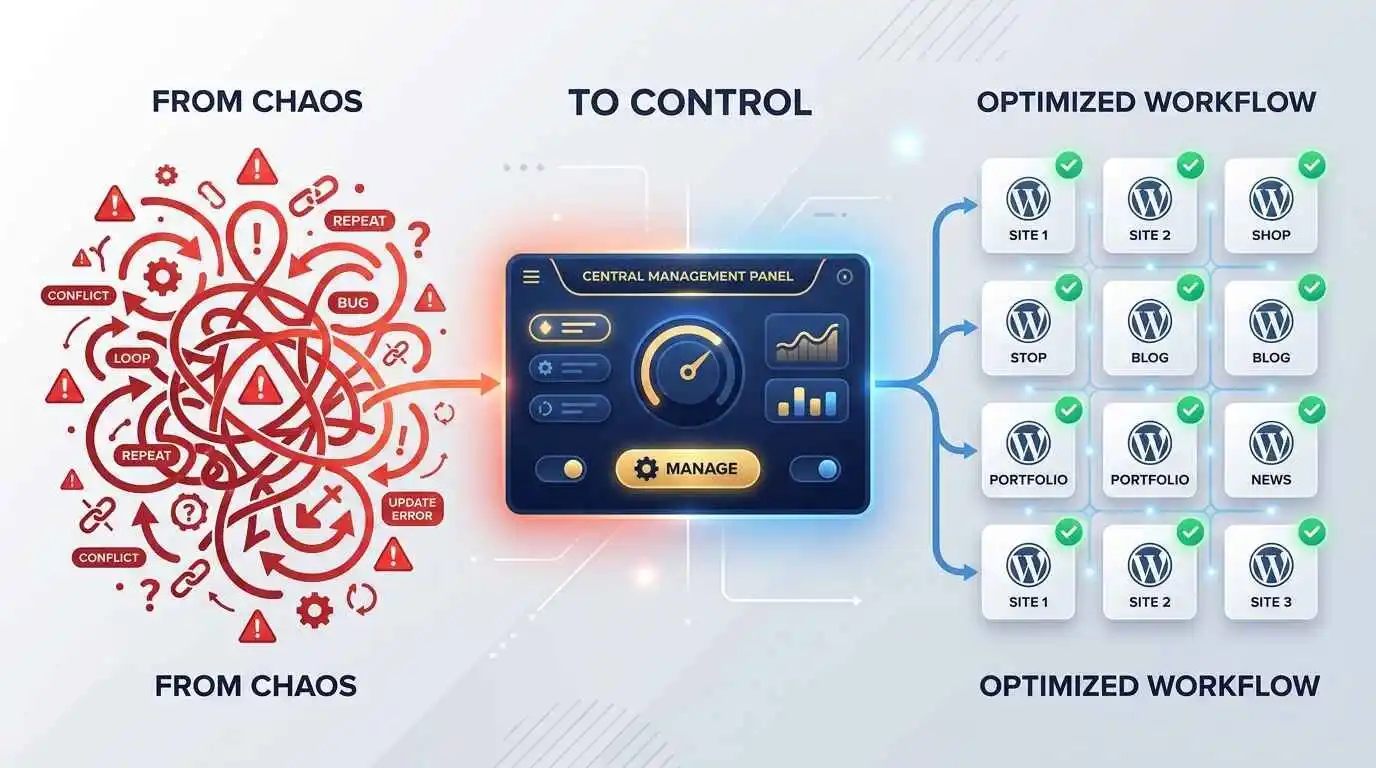
One Dashboard to Rule Them All: How WPMU DEV’s Hub Plugin Manager Ends WordPress Update Chaos for Good
Anyone who has managed more than a handful of WordPress sites knows the particular dread of plugin update season. A dozen tabs open, a dozen logins, a dozen wp-admin dashboards each insisting something needs attention right now. Multiply that across twenty, fifty, or two hundred client sites and the math stops being annoying and starts being unsustainable. This is the exact problem WPMU DEV built its Hub to solve, and nowhere is that more visible than in the Plugins section of Hub 2.0, the centralized control room where every plugin on every connected site can be added, installed, activated, configured, and removed without ever leaving a single browser tab.
The Plugins page inside The Hub is not just a glorified bulk-updater. It is a full lifecycle manager: a place to discover new plugins from WPMU DEV’s own premium library or the broader WordPress.org repository, push them out to one site or a hundred at once, apply saved configuration presets so every install starts from the same trusted baseline, and keep a bird’s-eye view of exactly which plugins are active, inactive, or missing across an entire portfolio of sites. For freelancers juggling client work, agencies managing retainers, and in-house teams running multisite networks, this single screen quietly removes hours of repetitive manual labor every single week.
This guide walks through exactly what the Hub’s Plugins feature does, how each part of the workflow functions in practice, and why it has become one of the most relied-upon tools for WordPress professionals who would rather spend their time building sites than babysitting update notifications.
What the Hub Plugins Page Actually Is
The Plugins page lives inside The Hub’s main navigation menu and serves as the command center for every plugin installed across every site connected to a WPMU DEV account. Before any of this functionality becomes available, at least one site has to be connected to the Hub, whether that site is hosted directly with WPMU DEV or connected remotely through the lightweight WPMU DEV Dashboard plugin installed on a third-party host. Once a site is connected, its plugin inventory automatically becomes visible and manageable from this central screen.
If no sites are connected yet, or if connected sites have no plugins installed, the page simply indicates that nothing has been found, prompting the next logical step of adding a site. This setup-first design reflects the Hub’s broader philosophy: rather than trying to manage plugins in isolation, everything is tied back to the site inventory, so plugin actions are always performed in the context of real, connected WordPress installations rather than abstract plugin listings.
Two Distinct Modes: Add New and Manage Existing
The Plugins section is organized around two clearly separated tabs, each built for a different stage of the plugin lifecycle. The Add New tab is the discovery and deployment screen, the place to land when looking for a brand-new plugin to push out to one or more sites. The Manage Existing tab, by contrast, is the oversight screen, showing every plugin already installed somewhere in the connected site portfolio along with a live snapshot of how many sites have it installed, active, inactive, or simply absent.
This separation matters because the two jobs are fundamentally different. Adding a plugin is about sourcing and pushing software outward to sites; managing a plugin is about auditing and adjusting what is already there. Keeping these as distinct tabs, rather than blending them into one cluttered interface, keeps each workflow fast and purpose-built.
Sourcing Plugins: Four Ways In
When landing on the Add New screen, four source tabs sit at the top, each representing a different origin for the plugins being deployed. The first is the WPMU DEV tab itself, which surfaces the company’s own library of premium plugins, the same award-winning tools like Smush, Defender, Hummingbird, and Forminator that the company is best known for. The second is the WordPress.org tab, which connects directly to the official WordPress plugin repository, giving access to the tens of thousands of free plugins available to the broader WordPress community.
The third source is Favorites, a personal shortlist built up over time by starring frequently used plugins, whether from WPMU DEV or WordPress.org, so they never need to be searched for twice. The fourth is the upload option, which accepts plugins as ZIP files or via a direct URL, covering custom-built plugins, premium plugins purchased elsewhere, or any plugin package that does not live in either of the first two repositories.
Switching between these four tabs takes a single click, and each one supports its own search and filtering tools. WordPress.org plugins in particular can be filtered by popularity, by WPMU DEV-affiliated status, by featured status, or by recommendation, making it straightforward to separate well-maintained, actively supported plugins from the long tail of abandoned or lower-quality listings that exist in any large public repository.
Searching, Filtering, and Favoriting
Finding a specific plugin is handled through a search field that filters results as text is typed, removing the need to scroll through long alphabetical lists. Each listed plugin carries an options menu, accessed by clicking the three-dot icon beside its name, which opens a small set of contextual actions: viewing the plugin’s product page, either on WPMU DEV’s own site or on WordPress.org, immediately adding the plugin to one or more sites, or saving it to the Favorites list for quick future access. A simpler shortcut exists for favoriting specifically, a star icon that sits to the left of each plugin’s name and can be toggled with a single hover-and-click.
This combination of search, filtering, and favoriting turns what could be an overwhelming catalog of thousands of plugins into something genuinely fast to navigate, particularly for agencies that tend to install the same trusted handful of plugins across most of their client builds.
Deploying a Plugin to Sites
Once a plugin has been chosen, clicking Add to Site opens the installation screen, which lists every connected site that does not already have that plugin installed. This list is not static or unwieldy even for large portfolios, since it supports pagination through a Sites per page control, free-text filtering by site name, and sorting either alphabetically or by recently added. For agencies organizing sites by client, by label, or by hosting type, an additional Filters and Labels dropdown narrows the list further, isolating, for instance, only WPMU DEV-hosted sites or only sites tagged under a specific client label.
From there, deployment is a matter of hovering over the target site and clicking either Install, which simply places the plugin files on the site without activating them, or Install and Activate, which completes both steps in one motion. For anyone managing more than a couple of sites, the bulk option is where the real time savings appear: selecting multiple sites from the list and clicking Install or Install and Activate at the top of the page queues the action across every selected site simultaneously, rather than repeating the process one site at a time.
Installations that are mid-flight remain visible and cancellable. If a site was added to the queue by mistake, or priorities shift mid-deployment, an X button next to each queued site removes it from the installation run before it completes, offering a safety net that prevents unwanted installs from finishing unnoticed.
Bulk Adding Multiple Plugins at Once
The deployment workflow extends naturally to bulk plugin selection as well. Rather than repeating the entire process for each individual plugin, multiple plugins can be checked simultaneously from either the WPMU DEV, WordPress.org, or Favorites tabs, then pushed forward together by clicking Add to Site at the top of the list. The subsequent site-selection screen behaves identically to the single-plugin flow, accepting one or many target sites before triggering Install or Install and Activate for the entire batch.
This bulk-on-bulk capability, multiple plugins deployed to multiple sites in a single coordinated action, is precisely the kind of repetitive, error-prone manual task that the Hub’s Plugins page was designed to eliminate. A new client site that previously required twenty separate plugin installations, each with its own login and click sequence, can now be configured in a fraction of the time.
Installing via ZIP File or URL
Not every plugin lives in a public repository, and the Hub accounts for that with two upload-based deployment paths. The ZIP tab accepts one or more plugin ZIP files, either through a standard file picker or by dragging files directly into the upload zone, with a per-file size limit of 20MB. While files are uploading, a progress indicator tracks each one individually, and the Add to Site button remains disabled until the batch finishes, preventing a half-uploaded plugin package from being pushed out prematurely.
The URL tab serves a similar purpose for plugins hosted as a downloadable package somewhere accessible online, accepting direct links as well as Dropbox and Google Drive share links. Unlike the ZIP method, which accepts multiple files in one batch, the URL method handles a single plugin package at a time. After upload or URL submission, both paths funnel into the same familiar site-selection screen used everywhere else in the Plugins workflow, keeping the experience consistent regardless of where the plugin originated.
One detail worth flagging for teams using this feature to push out custom or white-labeled plugins: if a plugin with the same identifier already exists on a target site, uploading via ZIP or URL will overwrite the existing version. This makes the feature genuinely useful for distributing updates to bespoke plugins that are not listed anywhere else, but it also means a quick backup before any ZIP or URL deployment is a sensible habit rather than an optional one.
The Manage Existing View: A Portfolio-Wide Audit
Switching to the Manage Existing tab reverses the perspective entirely. Instead of pushing plugins outward, this screen pulls visibility inward, listing every plugin currently present anywhere across the connected site portfolio. Each row in this list represents one plugin, accompanied by four numbers showing how many sites currently have that plugin installed, how many have it active, how many have it deactivated, and how many do not have it at all.
This single view answers a question that would otherwise require opening dozens of individual wp-admin dashboards: which sites are missing a critical security plugin, which sites still have an old plugin installed but switched off, and which sites are fully up to date. Hovering over any one of those four status numbers reveals the actual list of sites behind that count, along with the specific version number installed on each, turning a high-level summary into an actionable, site-by-site breakdown in a single hover.
Listed plugins default to alphabetical order but can be re-sorted by clicking any status column’s icon at the top, instantly regrouping the entire list by installed count, active count, or any other status. Combined with the same filter-by-name search field used elsewhere in the Hub, finding a specific plugin’s footprint across a large site portfolio takes seconds rather than the open-each-site approach this feature was built to replace.
The Manage Action: Site-by-Site Control
Selecting Manage from a plugin’s options menu opens a dedicated management screen for that single plugin, organized into three tabs: Active, Inactive, and Not Installed. The Active tab lists every site currently running that plugin along with its installed version, the Inactive tab covers sites where the plugin exists but is switched off, and the Not Installed tab covers sites that do not have it at all. This three-way split mirrors the natural lifecycle states a plugin can be in across a fleet of sites, and each tab supports the same filtering and sorting tools available throughout the Hub.
Activating, Deactivating, and Deleting at Scale
From the Active tab, deactivating a plugin on a single site is as simple as hovering over that site’s row and clicking Deactivate. For broader changes, selecting multiple sites and clicking Deactivate at the top of the list switches the plugin off everywhere selected in one coordinated action, which is particularly useful when troubleshooting a suspected plugin conflict across several sites that share the same configuration.
The Inactive tab offers the mirror image of this same workflow for reactivation: hovering over a site and clicking Activate brings the plugin back online there, while selecting multiple inactive sites and clicking Activate at the top reactivates the plugin across the whole batch at once. The same tab also exposes a Delete option, removing the plugin entirely from a site rather than simply leaving it switched off, with the same single-site and bulk-selection patterns applying here as well.
Every one of these bulk actions, deactivation, activation, and deletion, queues changes against the selected sites and displays them as pending until complete, with the same cancel-via-X-button safety net available throughout the rest of the Hub’s plugin workflows. This consistency across install, activate, deactivate, and delete actions means there is effectively one workflow pattern to learn, applied uniformly across every stage of a plugin’s life on a site.
Installing on Sites That Don’t Have It Yet
The Not Installed tab closes the loop on plugin lifecycle management. From here, the same Install and Install and Activate actions available on the Add New screen reappear, scoped specifically to sites missing that particular plugin. This means a gap discovered during a routine audit, say, three sites out of forty missing a security plugin that should be standard across the portfolio, can be closed immediately from the same screen where the gap was spotted, without navigating back to the plugin discovery flow at all.
Applying Configs: Consistency Without Repetition
One of the more powerful features tucked into the Active tab of the Manage screen is the ability to apply a saved configuration preset directly to a plugin installation. Certain WPMU DEV plugins, SmartCrawl, Defender, Smush, Hummingbird, Snapshot, and Uptime among them, support these configs, which bundle up a full set of plugin settings into a single reusable preset. Rather than manually reconfiguring SEO settings or firewall rules on every new site, a config built once can be applied with a couple of clicks.
Hovering over a site in the Active tab and clicking Add Config opens a selection of available presets, including default WPMU DEV-built configs that come ready to use out of the box, as well as any custom configs built and saved previously. Selecting a preset and clicking Apply pushes that exact configuration to the site immediately. As with every other bulk action in this workflow, configs can be applied to multiple sites at once by selecting them first and clicking Add Config at the top of the list, making it possible to roll out a standardized security or performance configuration across an entire site portfolio in moments rather than hours.
This config system is arguably what elevates the Hub’s plugin management beyond simple bulk installation. Installing a plugin everywhere is useful, but installing it everywhere with the exact same trusted, battle-tested settings is what actually saves an agency from configuration drift, the slow accumulation of inconsistent settings across a growing site portfolio that eventually makes troubleshooting and standardization a nightmare.
Limitations Worth Knowing
A few boundaries shape how this feature works in practice. Free Hub accounts cannot install the Pro versions of WPMU DEV’s premium plugins through this interface, limiting free users to plugins sourced from WordPress.org, their Favorites list, or direct ZIP and URL uploads; accessing the full WPMU DEV premium plugin library requires an upgraded membership. Additionally, plugins that were originally installed on a site from a source outside WPMU DEV or WordPress.org cannot be pushed to additional sites through the Hub’s plugin management page, a restriction that primarily affects certain niche or custom-licensed plugins with non-standard distribution methods.
It is also worth remembering that installing via ZIP or URL overwrites any existing plugin with a matching identifier on the target site, which is a feature for intentional updates but a risk if triggered by accident, reinforcing the value of routine backups before any bulk deployment, particularly when working with anything other than the standard WPMU DEV or WordPress.org sourcing tabs.
Why This Matters for Agencies and Freelancers
https://youtu.be/g3t2kicQz4o